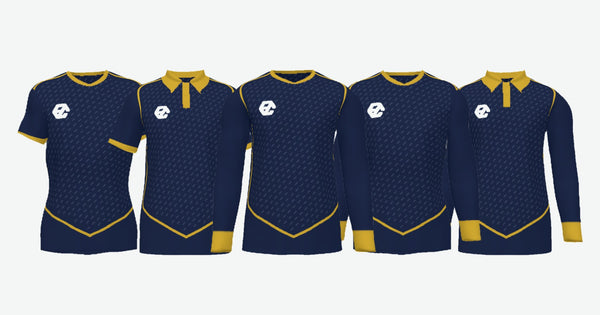
Four sides for your sponsors: how to share out the logos
Chest, back and both sleeves. Which side is worth most, how to rank main and secondary sponsors, what each button on the logo row does and the mistakes that keep coming up.
Getting sponsors takes months. Placing them well takes ten minutes, and that's what decides whether the one paying sees their brand in Sunday's photos. Logos are shared out across four parts: Chest, Back, Left sleeve and Right sleeve. You choose the part, upload the logo and drag it to its spot, even from one part to another. You can upload several at once, with no limit. When you tap one, its frame appears, for size and rotation. This guide is about how to share them out.
Not every side is worth the same
Before you drag anything, be clear about what you're sharing out. The four sides don't have the same value:
- Chest. It's the side that appears in photos: the team photo, the starting eleven, the one that goes up on social media. A logo on the chest is seen from the front in practically any picture. It's the main sponsor's spot.
- Back. It's seen a lot during the match, but it competes with the number and the name. There's space, but not unlimited: it usually fits one logo in the upper area, above the number.
- Sleeves. They're the natural spot for secondary sponsors. The area is small and the logo is seen up close more than from afar, but it lets you give room to two more brands without cluttering the design.
Rank them before you touch the customiser
Make the list on paper: who the main sponsor is and who the secondary ones are. Then share them out.
- Main: the chest. If they also contribute enough to take two sides, the second is the back.
- Second sponsor: upper back, if it's free.
- Secondary: one brand on each sleeve.
A layout like this fits four brands with one side each and none of them clashing with another. It's a much easier conversation with the sponsor when you can show them exactly where they're going to be.
Each logo has its own controls
Each logo you upload appears on its own row, with its buttons: the piece it goes on, the size with − and +, Centre, the ones for removing the background (Background and +holes), the one for tinting it (Colour, with Original colour to undo it) and the cross to remove it. And if you've put it in the wrong place, don't upload anything again: drag the logo from one piece to another and that's it.
And when you tap a logo its frame appears, like in design programs. From the corners you change the size without distorting it, and with the circle you rotate it: it stays straight as it passes 0°, 90° or 180°. On the little bar you have − and +, “Zoom” and “Remove”. On a computer, the arrow keys move it, + and − change the size and Esc lets it go.
If two logos overlap, “↑ Bring forward” and “↓ Send back” decide which one stays in front, and they're printed in that order. And if you make a mistake, ↶ ↷ undo and redo.
That lets you experiment. Upload the four logos, put them all on the chest to see them, and then send them to their spots one by one. Comparing two layouts takes a couple of clicks, so it's worth looking at three or four combinations before deciding.
Placing and sizing
Within each side, logos are dragged to the position you want and their size is adjusted. Two simple criteria:
- The main sponsor must be readable from a distance. If you have to get close to the screen to know which brand it is, it won't be readable on the pitch either.
- Logos on the same side should have a consistent size with each other. Two brands of the same level with very different sizes stands out, and the one that comes out small notices.
The dotted line on the sleeve: what it is and what it isn't
On the sleeve you'll see a dotted line. It isn't a wall: it's a recommendation. A logo placed outside it is printed just the same and at its size (nothing is cropped), but it's worth knowing why that line is there: the sleeve is sewn into a tube, and whatever is close to the edges ends up on the inner side, under the arm, where nobody sees it.
That's why the rule isn't “stay inside the box” but “check it in 3D”. And you have it in front of you all the time: the shirt is shown in 3D while you place the logos. Before the cart, it opens full screen so you can confirm it. There, by rotating it, you can see in two seconds whether the paying sponsor's logo can be read or has slipped under the arm.
In the catalogue, if a logo goes outside the printed area, it warns you: “There's a logo outside the garment's print area”.
Factor in the EZ logo before sharing out
Our logo is included and goes on the chest as standard. It can't be removed, but it can be moved to the right sleeve: in Design your shirt, with “Move it to the right sleeve”; in the catalogue, with “On the right sleeve”, on the designs and colours where that's possible. And you choose its colour: the ones that wouldn't be readable on your design are crossed out, and on automatic we choose it. Bear it in mind when sharing out: if your main sponsor goes in the centre of the chest, move the EZ logo to the sleeve and leave the front clear for them.
The mistakes we see most often
- Putting the logo right against the edge. It looks cramped and any cutting margin eats into it. Leave space around it.
- Placing it over a seam. On the shoulder, on the side or where the sleeve joins, the artwork gets distorted. Check this especially with wide logos.
- Competing with the number. On the back, the number rules. If the logo gets too close, both lose out. Move the logo up to the upper area and leave room for the number. And now there's an easy fix: the number can be moved and resized, so instead of shrinking the sponsor's logo you can lower or shrink the number until both have room to breathe.
- Piling logos onto the same side. Three brands squeezed onto the chest and none of them can be read. If you have four sponsors, you have four sides: use them.
- Uploading the logo with a white background. A JPG with a box arrives with its box, but we remove it when you upload it. If anything's left, try again with Background or +holes, and enlarge the thumbnail to check. The cleanest option is still to upload it already cut out, as a PNG with a transparent background.
Think about the away kit
A layout that works on a light shirt may not work on a dark one. Before you finalise it, look at how each logo looks on the real colour of both kits. If a brand disappears against the background, ask the sponsor for their version for dark backgrounds: almost all of them have one (or tint it yourself with the Colour button).
And if you want more than logos, there are also texts (straight or arched), champion stars, flags and shapes. They go on like any other logo and at no cost. We explain it in texts, stars, flags and shapes.
Quick summary
- Decide the ranking before you open the customiser.
- Main on the chest; second on the upper back; secondary on the sleeves.
- Use each logo's controls to try layouts without uploading files again.
- Drag and adjust the size. The dotted line on the sleeve is a recommendation, not a wall: check in 3D that the logo doesn't slip under the arm.
- Nothing against the edge, nothing over a seam, nothing on top of the number.
- Check the result on the real colour of both kits.
If you're still at the stage of finding them, start with how to get sponsors for your club. And once they've signed, go into the customiser and place them on the real design before approving anything.