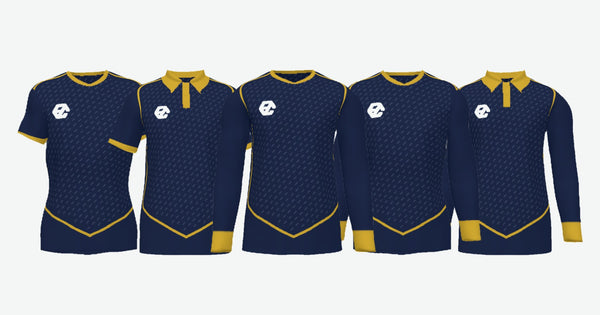
The AI doesn't add your crest, and that's the right way
The AI paints the fabric and only the fabric: it comes out without a crest, without sponsors and without numbers. Why that's right and how all of that goes on top, included.
It's a very common question: “I've generated the design and it's come out without the crest, is it broken?”. It isn't broken. The AI doesn't put the crest on the shirt, and it's not a limitation we're covering up: it's the only way for your crest to come out as it really is. The AI paints the fabric, and only the fabric. Everything else goes on top and afterwards, you add it, and it's included.
What exactly the AI does: it paints the fabric
When you choose “Design with AI” (with up to four photos, which you can remove and add before generating, or by describing it in words) what you're asking for is the print: the artwork printed on the fabric. Stripes, gradients, textures, motifs, the palette. That's what it generates, and it generates it on the real pattern of the five pieces: Front, Back, Left sleeve, Right sleeve and Collar.
So what comes out is a shirt without a crest, without sponsors and without numbers. That's how it should be. In fact, you'll now see a notice about it on the screen itself, in green and with a big heading, right at the moment the question usually comes up.
One note, because it used to be possible and now it isn't: you don't ask the AI for changes in writing. No “make the band wider”. That was removed, and nobody misses it, because whatever can be changed is changed by hand, instantly and for free: the colours, the sleeves, the plain back, the collar.
Why the AI doesn't put the crest on the shirt, and why that's right
For two reasons, and you'll see both as soon as you try it once.
The AI is bad at writing. It doesn't copy letters: it draws them from memory, and it almost always adds or drops one. A club called PURA CALLE comes out as CURA CALE. It isn't bad luck, it's how it works: for the machine those aren't words, they're shapes that look like words. With your club's name on the chest, that means twelve shirts with a typo.
The AI reinvents logos. A crest has an exact shape, exact colours and sometimes a founding year written underneath. The AI doesn't copy it: it interprets it. It gives you back something that looks like it, with the lion facing the other way and the stripes moved around. For a club that's not a design: it's a crest that isn't theirs.
An invented print is a virtue. An invented crest is a printing error multiplied by twenty-two.
What goes on top and afterwards: crest, sponsors and numbers
The crest, the sponsor logos and the names and numbers aren't painted by the AI. They're placed on top, in the next steps, and you add them in two clicks. They come out sharp, because they're printed from your file and not from an imitation. And they're included: the crest costs nothing extra and neither do the sponsors.
The designer is in that order on purpose. There are three steps: Design, Crest and logos, and Your team and players. First the fabric, then what's printed on top, and finally the squad with their sizes.
Placing it is a matter of dragging. Logos move around the garment and even from one piece to another, and you can adjust their size. Names and numbers move with the arrows or with your finger, they can be enlarged, reduced and centred, and they have their own colour; you can also add a number on the chest. None of this uses generations: placing is free, generating is the only thing that uses a credit.
And there's one detail worth keeping in mind when sharing out: the EZ logo is included and on the chest as standard. It can't be removed, but you can move it with “Move it to the right sleeve” and choose its colour: the ones that wouldn't be readable on your design are crossed out. If it stops being visible when you change design, it goes back to automatic on its own and lets you know. If your main sponsor goes in the centre of the chest, send it to the sleeve and leave the front clear for them.
How to check it'll come out sharp
You have two tools, both free and both on the same screen.
The magnifier. With “View in detail” you zoom into the 3D shirt and the pieces, with the buttons or with your fingers. If the crest breaks up into little squares up close, it'll break up in exactly the same way when printed. Better to find out here than in the changing room. And the AI artwork has its own magnifier, up to 16×, with the real dpi of each piece.
The transparency notice. When you enlarge a crest or a logo you can change the viewer background (chequerboard, white, black or green) and the system tells you whether the image has real transparency or comes with a background stuck to it. It's a very common mistake: a JPG with a white box is printed with the box, and on a maroon shirt you can see the box. The best thing is to upload a PNG with a transparent background. If yours has a background, in “Design your shirt” it's removed automatically when you upload it; we explain it step by step in removing the white background from your crest.
And before the cart, the 3D confirmation
The shirt is shown in 3D from the start, while you design, and every change appears instantly. When everything's done (fabric, crest, sponsors, names and numbers), when you add it to the cart it opens full screen with the order total: “I confirm the design · Add to basket” or “Back to editing”. It's free and doesn't use generations.
There you see everything together and rotating, which is how it's seen on the pitch. And you notice something you can't see flat: the sleeve is sewn into a tube. On the sleeve there's no closed area, just a dotted line with the recommended area. Whatever you put outside it is printed just the same and at its size, but it may end up on the inner side, under the arm, where nobody sees it. Rotating the shirt, you see that in two seconds.
That confirmation has another purpose too: it's where you approve the design before paying.
Summary to take to the committee
- The AI makes the print. Only the print.
- It comes out without a crest, without sponsors and without numbers, and that's right.
- You add those afterwards, in two clicks, and they're included in the price.
- It comes out sharp because it's printed from your file, not from an interpretation.
- You check it with the “View in detail” magnifier and with the chequerboard background.
- And you approve it in 3D before paying.
If you don't have a crest yet or want to redo it, start with how to prepare your club's crest. If what you want is to fine-tune the print, how to ask the AI so it prints well has the details. And when you have it ready, go and design your shirt and place the crest on the real design before approving anything.