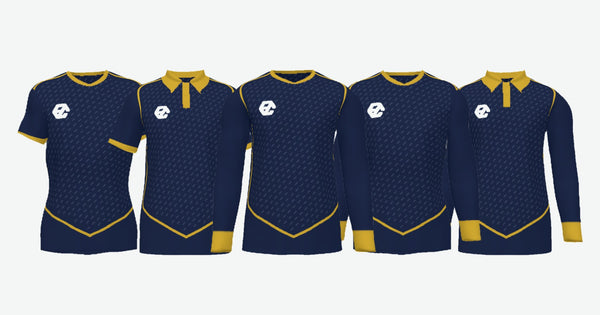
Save your kit, share it and let the committee have their say
Save up to 3 designs with the crest, sponsors, numbers and the players' sizes, and share the link so the committee can give their opinion.
A kit isn't chosen by one person. It's chosen by the chairman, whoever brings in the sponsor, the coach and, in practice, the whole WhatsApp group. Until now that was sorted out with blurry screenshots and “but that green isn't last year's”. There's no need any more: you can share your kit design with the club by sending a link, and save up to three versions so the committee chooses from something real and not from a photo of your screen.
The problem isn't designing: it's fourteen people giving their opinion
Putting a shirt together takes twenty minutes. What eats up the month is the round of opinions. Someone takes a screenshot of the pattern, sends it to the group, three reply, two don't open it, and by the time the answer arrives whoever was designing has already changed the colour. A screenshot shows a frozen moment: as soon as you touch anything, it stops being true.
And there's one thing a screenshot can't show. The flat pattern doesn't tell you how the sleeve hangs or whether the number can be read from ten metres. You only see that once it's put together.
The other classic is the lost file. Whoever put the design together in June isn't around in August, or changed phone, or did it without an account and it's nowhere to be found. And you have to start again, sizes included.
What's saved now: the whole kit
Up to 3 designs are saved, and what's saved is no longer just the artwork. It's the complete kit:
- The design: the artwork and all the colours, sleeves and collar included.
- The crest, just as you uploaded it and where you placed it.
- The sponsor logos, each on its piece and at its size.
- The font, whether it's EZ's or your club's.
- The names and numbers, with their colour, size and position.
- The list of players with their sizes.
The last one is what saves the most time. Collecting the sizes for twenty players takes two weeks of chasing parents, and until now that work lived on a separate sheet that had to be typed in again. Now it goes inside the saved design: if the club takes a month to decide, the sizes are still there when you come back.
Three slots sound like few, but they're more than enough if you use them sensibly. The sensible thing is to save the two proposals you're going to vote on and leave the third one free for the one that comes out of mixing the two, which is almost always the one that ends up being ordered.
And you can save from any of the three steps: Design, Crest and logos, and Your team and players. “Save” is above the shirt as soon as there's a design in front of you. So you can leave it half-done and carry on tomorrow.
Sharing your kit design with the club: the link
With “Share”, above the shirt, you get a link: “Copy link” or “WhatsApp”, which sends it with a summary of the design. Whoever opens it goes into the design, not into an image that WhatsApp has compressed three times. And you don't need to save it first.
The link carries the design exactly as it is when you share it: the artwork, the colours, the texture, the sleeves, the collar and the style of the name and number. The crest and logos don't go in the link, because they belong to the club, and neither does the list of players. If you want them to see it with the crest, show them the screen or a screenshot. And if you change something later, send a new link.
With “Show summary” you have it in writing: the artwork, the colours, the sleeves, the collar, the name and number, and the font. One special case: if the design includes images, like one made with AI or one uploaded on the template, there's no link. Save it in “My designs” and you'll always have it.
What is worth sending with the link is the context: what's being voted on, what isn't and by when. If you open the door to opinions on everything, someone will suggest changing the club crest, and that's not a kit decision.
And a piece of management advice, because this is where clubs get stuck: don't send three links asking “which one do you like best?”. Send two, give them names (“the striped one” and “the sash one”) and set a date to reply. Three open options with no deadline is exactly how September gets lost, which is also the month when every club's orders pile up and lead times get longer.
With or without an account: the difference that hurts
With an account, the designs live in your account and you can open them from any device. You start on the work computer, show it from your phone at the pitch on Saturday and finish it on Sunday at home.
Without an account they're only saved in that browser. In other words: if you put the kit together on the laptop and then go in from your phone, it won't be there. Nothing has been deleted; it simply never left that browser. And in a club, where one person almost always starts and another finishes, without an account it just doesn't work.
And it affects more than saved designs: generating with AI needs an account. The five free generations are linked to it, so if you plan to try the AI, you'll need the account anyway.
That's why, if you know several people are going to look at this, the account comes before you start, not after. If you leave with work done, the designer itself offers to create one, and when you come back the design is saved automatically.
If you open it and change it, it's updated: it doesn't create another one
A small detail that avoids the classic mess of having four versions and not knowing which one is the right one. If you open a saved design and change something, the button offers to update it, not to create a new one. You only have three slots and it's nice that they don't get used up on their own.
A tip that avoids arguments: if the committee asks for “the same but in blue”, there's no need to generate anything new. Open the saved one, change the blue and update it. Changing colours doesn't use any AI generations, so the colour versions are free and don't take up a slot.
To go back to one, on the first screen of “Design your shirt”, below the ways to start, you have “+ Open a saved design”. Your designs are there, with “Open” and “Delete”.
To decide between several: “Compare versions”
If you're torn between two or three combinations, use “Compare”, above the shirt. With “+ Save this version” you note down each one, up to six (from A to F), with its thumbnail. Tapping one puts it back on the shirt.
To vote you have “Ask for opinions on WhatsApp”, which sends one link per version, and “Image with all of them”, which puts them together in a single image. The versions stay in that browser and don't take up any of your three slots.
In the catalogue customiser you have the same: “Share it with your team” and “Compare versions”. There the design isn't saved in “My designs”: you keep the versions in that browser and the link.
How clubs that don't drag it out do it
In short, and in order:
- Create the account before touching anything.
- Put together two genuinely different versions, not three variations of the same green.
- Save them with the list of players inside if you already have the sizes.
- Send the two links to the group with a short deadline.
- Collect what people say, open the winner, change it and update it.
- Approve it in 3D before paying, which is the step that closes the discussion.
If you're still collecting sizes, see how to take sizes for a whole team without mistakes; and if the team is large, load your whole team from Excel instead of typing player by player. If you're starting from scratch, how “Design your shirt” works from start to finish has the whole walkthrough. And when you want to put together the first version to show the committee, go and design your shirt.